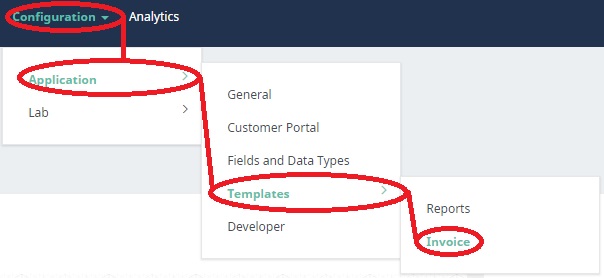
- In order to access templates for invoices, you must first click Configuration. Then you go to Application, then Templates and finally Invoice.
- After selecting this, a new page will open with language formatted in HTML, using Jinja template language. You can work with QBench to create a new worksheet.

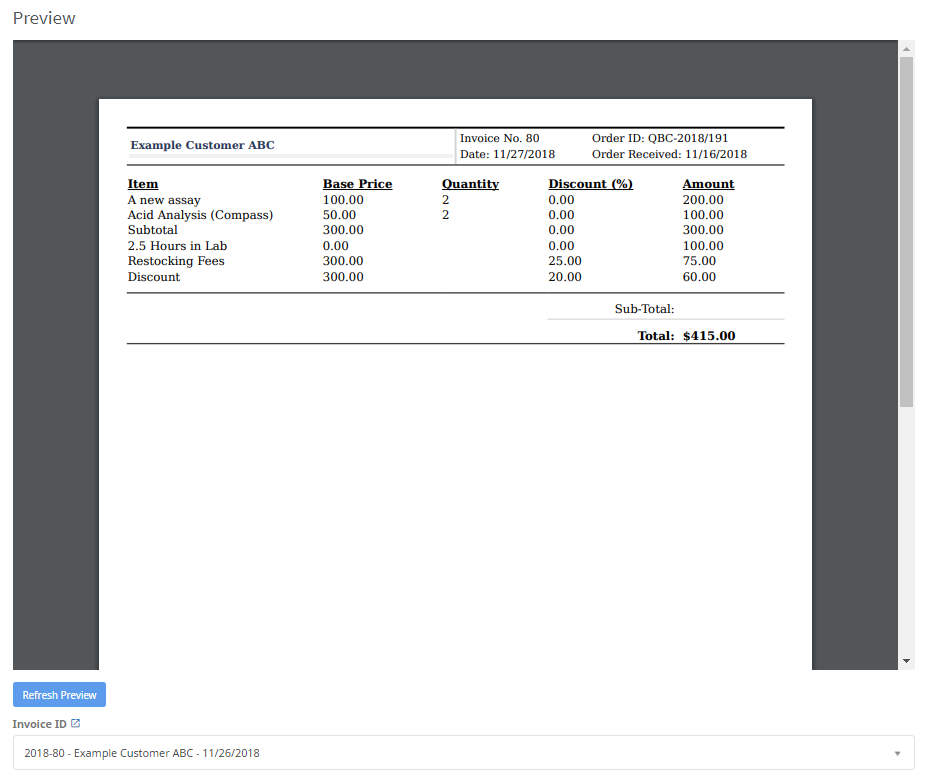
- On this same page, you can also see a preview for any invoices you choose. Simply select the invoice from the dropdown menu and click the Preview button below.
- Note: you can only save one invoice template. If you want to switch between different invoice templates, the formatting has to be saved and uploaded in a different program. Then the language must be copied and pasted into the invoice template.
- The other tab in invoice templates is Attachments. Here, you can add files and and documents. You can also list notes or choose a new file name. When you are done, click the Upload button
- After you click Upload, other users will then be able to download this file by clicking the downward pointing arrow.
- You can also delete this attachment by clicking on the garbage can next to the arrow. In order to delete an attachment, you must confirm this before it is removed.
Invoice Templates

Comments
0 comments
Article is closed for comments.